Affiliate Disclosure: Some links in this article may earn us a small commission if you make a purchase, at no additional cost to you.
Guide To Fix Stuck on 60Hz Refresh Rates
GTT Difficulty Rating: 2/10
Time to Complete: 5 Minutes
Before You Begin (Requirements)
Notes: We understand that some of these steps might feel pointless or like they won't work, trust us, we understand the pain of dealing with display troubleshooting. We will do our best to provide all possible scenarios to fix your issue. If we miss something, contact us with the details so we can replicate the bug and update the article.
High Refresh Rate Monitor: All you need is a high-refresh rate monitor.
If you want a good gaming monitor with high refresh rates check out our guide to choosing the best gaming monitor or consider reading our in-depth guide on the Alienware AW2725DF OLED gaming monitor.
Step 1: How to Change Your Refresh Rate in Windows Settings
Note: If your refresh rate is active but is being locked in games, scroll down to
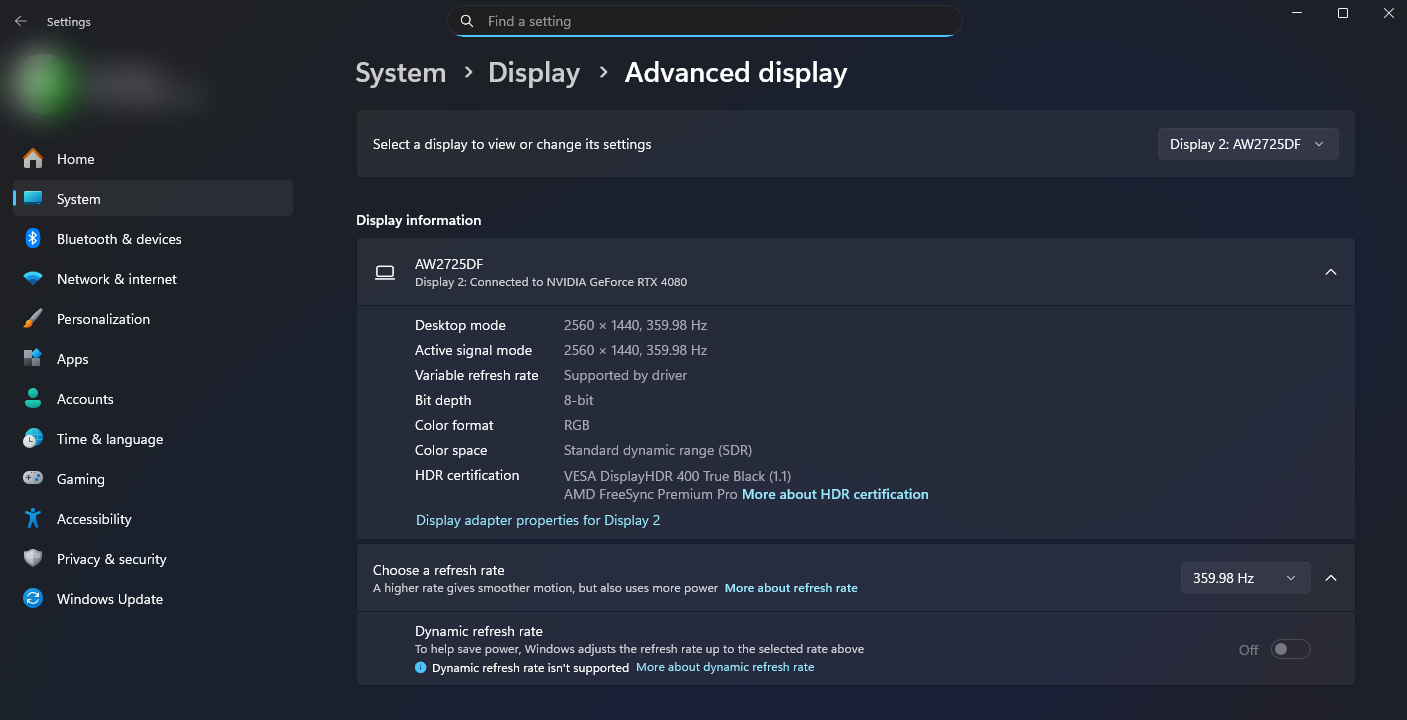
To change your refresh rate in Windows, you need to navigate to Windows Settings > System > Display > Advanced Display.
Then, simply click the dropdown menu on the top right to select the specific display you are changing the refresh rate for. From there, go to the bottom right and select the highest refresh rate your monitor supports in the dropdown box next to "Choose a refresh rate." If you are completely missing your monitor's advertised refresh rate here, then you are likely to find your solution within Steps 2 and 3, or make sure to check your monitor’s physical on-screen display (OSD) settings for an overclock mode.
Step 2: Checking Your Graphics Card GPU Control Panel
Changing Resolution and Refresh Rate in the Control Panel
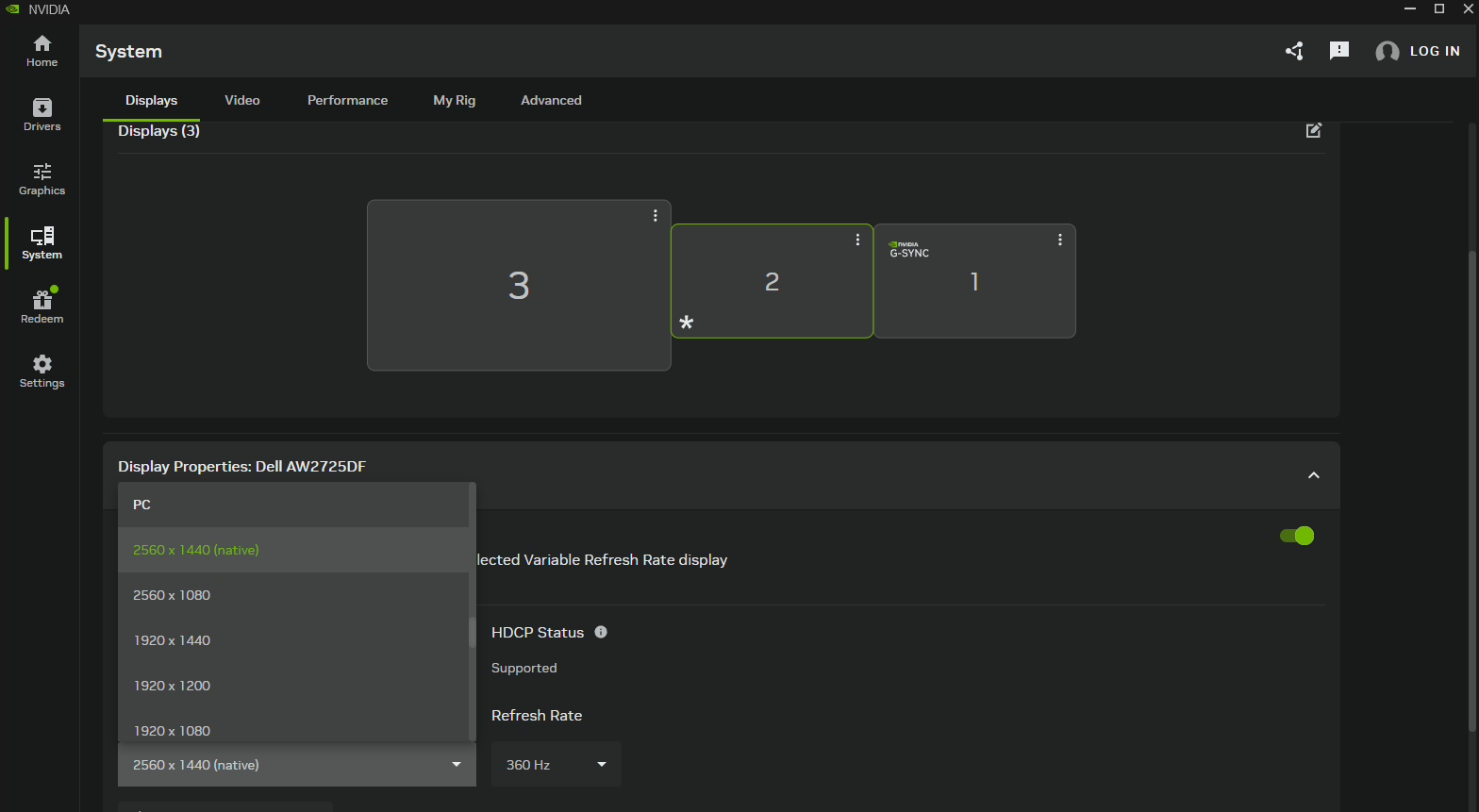
To check your graphics card control panel, start by navigating to the Display section (such as "Change resolution" in the NVIDIA Control Panel). From there, ensure you choose a resolution under the "PC" category rather than the "Ultra HD, HD, SD" list. Scroll down the list until you find the PC section, click on your monitor's Native resolution option, and then try swapping your refresh rate to its maximum speed using the dropdown menu.
Step 3: Hardware Bottlenecks (DisplayPort vs. HDMI Cables)
At this point if your full native resolution and refresh rate doesn't line up with your advertised specs than your likely being bottlenecked by either an outdated DisplayPort or HDMI cable.
Use the Provided DisplayPort Cable for Your Monitor
Most new gaming monitors ship with a DisplayPort cable right in the box, and it is generally best to make use of it so you don't run into bandwidth issues. DisplayPort cables offer significantly higher bandwidth than older HDMI standards. In fact, even an older DisplayPort 1.4 connection can drive a 1440p monitor at 540Hz when utilizing Display Stream Compression (DSC).
Make Sure Your HDMI or DisplayPort Cables Are in the Right Port
Many monitors and TVs feature multiple inputs, but often only one of those ports actually supports the highest rated cable standards and refresh rates. Because HDMI standards are historically more limited, this is a massive reason why so many people get confused when their 240Hz monitor only shows up as 144Hz. Either the monitor strictly requires a DisplayPort cable to reach its maximum high refresh rate, or the manufacturer didn't bundle a strong enough HDMI cable for the supported port, requiring you to buy a premium HDMI cable that explicitly supports 240Hz refresh rates and higher resolutions.
Gaming Fix Checklist: Still Stuck at 60Hz When Gaming?
If you are stuck at 60Hz in a specific game even though you are able to select a higher refresh rate in Windows, or if it is only happening in one particular title, the likely cause of your issue is down to game settings, control panel configurations, or a driver issue. Beyond that, it could possibly even be caused by using game mods that conflict with the engine, or random abnormalities from in-game bugs.
New PC? Install the Latest Graphics Driver
This is a simple fix, but it is usually pretty effective, especially if you just got a new gaming PC with a fresh install of Windows. Just look up the exact graphics card model you have and install the correct official drivers.
Reset Control Panel and Game Settings
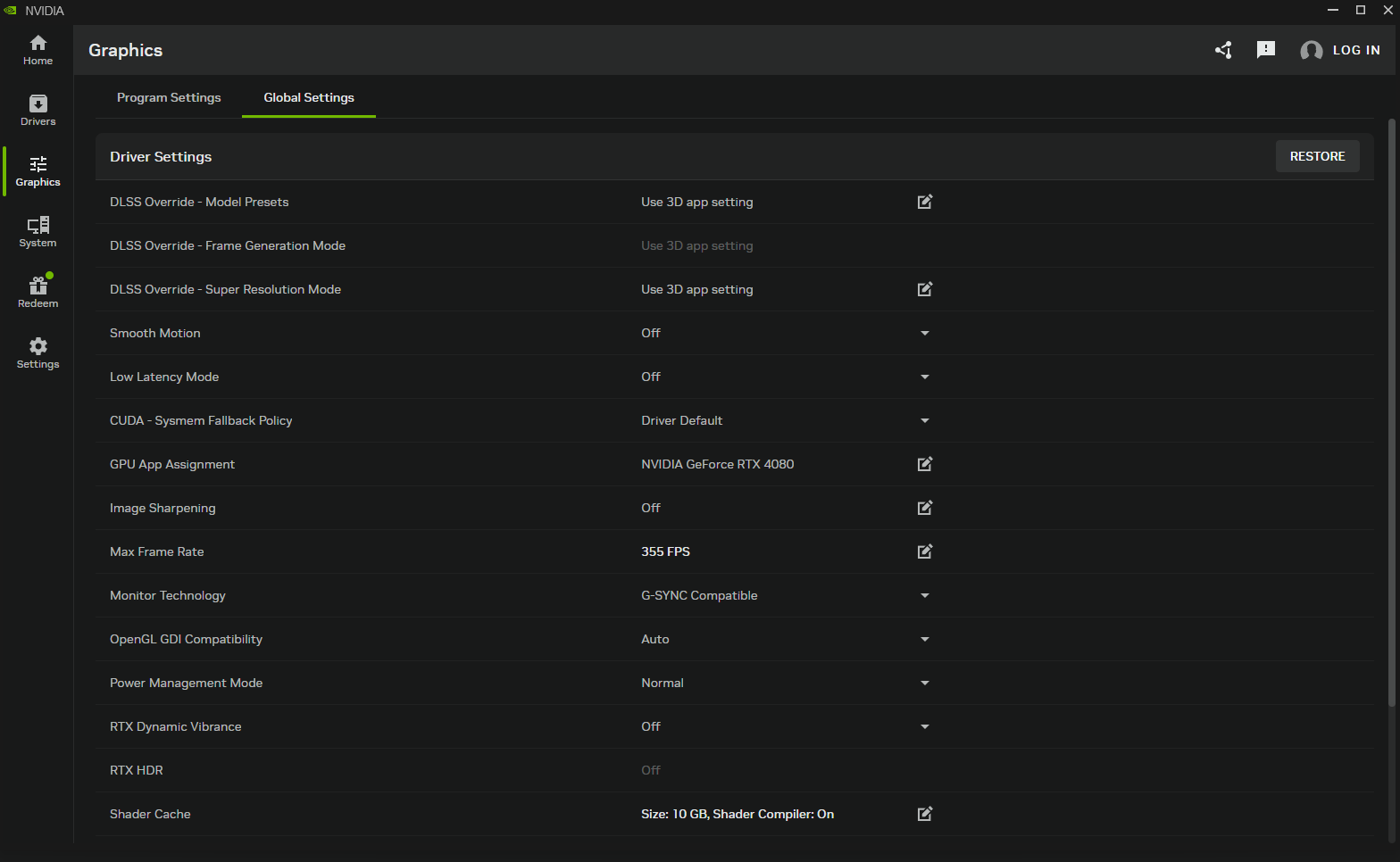
Depending on whether the issue is game-specific or happening across all your games, navigate into your GPU control panel and restore all driver settings to default. We recommend doing this for your in-game settings as well, or at least disabling V-Sync in-game if it is currently enabled. This is the quickest way of snuffing out poorly optimized settings that you might have applied and forgot about.