
Affiliate Disclosure: Some links in this article may earn us a small commission if you make a purchase, at no additional cost to you.
What Does Windows Game Mode Actually Do?
Game Mode is an option in your Windows settings. Its main goal is simply to prioritize your CPU and GPU for the games you're actively playing, while turning off or lowering background task usage. Xbox also notes that it prevents Windows Update from performing driver installations and sending restart notifications. If you're looking for further GPU-level tuning alongside Game Mode, check out our guide on the best NVIDIA App & Control Panel settings.
Ultimately, it's a great feature for dropping those annoying notifications while gaming, while simultaneously prioritizing your hardware resources for your game rather than wasting them on background tasks that just don't need that much juice.
Does It Increase FPS or Reduce Stutters?
Absolutely. Windows Game Mode can increase FPS and reduce stutters by improving 1% lows, and those stutters tend to happen less thanks to the CPU and GPU prioritization. However, to be honest, in most games it's usually just a back-and-forth, with only a few titles seeing a slightly higher average or better 1% lows. This setting doesn't magically upgrade your hardware and increase FPS dramatically; the difference is pretty minimal.
You'll probably get the best impact when playing competitive games. How games perform will always be highly game and hardware dependent in general and even when enabling Game Mode. If software settings aren't resolving system stutters, make sure your hardware isn't artificially choked by enabling memory profiles in our RAM EXPO and XMP setup guide.
Want To Truly Boost FPS? Look For A PC Upgrade Here
Performance Can Actually Hurt With Game Mode
Yes, when enabling Game Mode, you can improve performance lightly in certain games, your specific hardware actually matters too. Heck, we'd say most of the time you should just try the setting out for yourself. Do you get stutters or a loss of FPS when gaming?
On older, outdated setups with less RAM, fewer CPU cores and threads, or a slow hard drive, you can actually lose performance when enabling Game Mode. That's because if you only have 8GB of RAM and a quad-core CPU, Windows 11 still needs to process its background telemetry and tasks. Since Game Mode deprioritizes all background tasks, those essential system processes get choked out, and you might start to stutter and generally lose frames.
How to Turn Game Mode On or Off in Windows 11
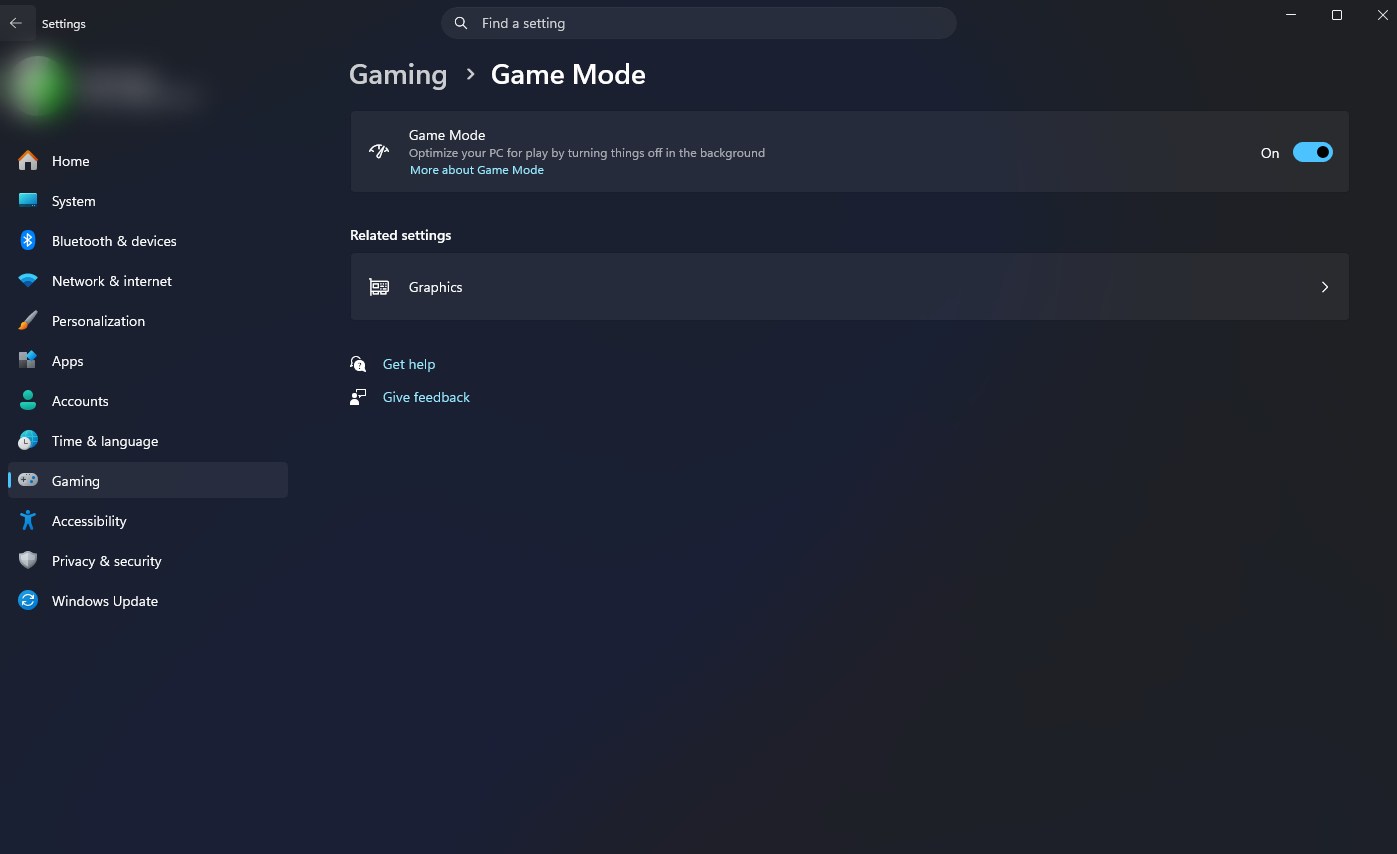
Simply open up your Windows Settings and navigate to Gaming > Game Mode. From there, you will see a toggle switch on the right to enable or disable Game Mode.
Should Turn It On or Keep It Off?
Our Verdict:
It's generally safe to keep on for most gamers, but again, we recommend running a few tests yourself to see how it handles your specific hardware
Keep It On: If you own a modern gaming PC, want some extra performance, and are looking to possibly decrease your input lag, you shouldn't run into many issues, if any at all.
Keep It Off: If you run older PC components, hit system resource limits, experience application issues while streaming and recording, or notice that Windows and your games are crashing.