
Affiliate Disclosure: Some links in this article may earn us a small commission if you make a purchase, at no additional cost to you.
The Core Difference Between Reflex and Low Latency Mode
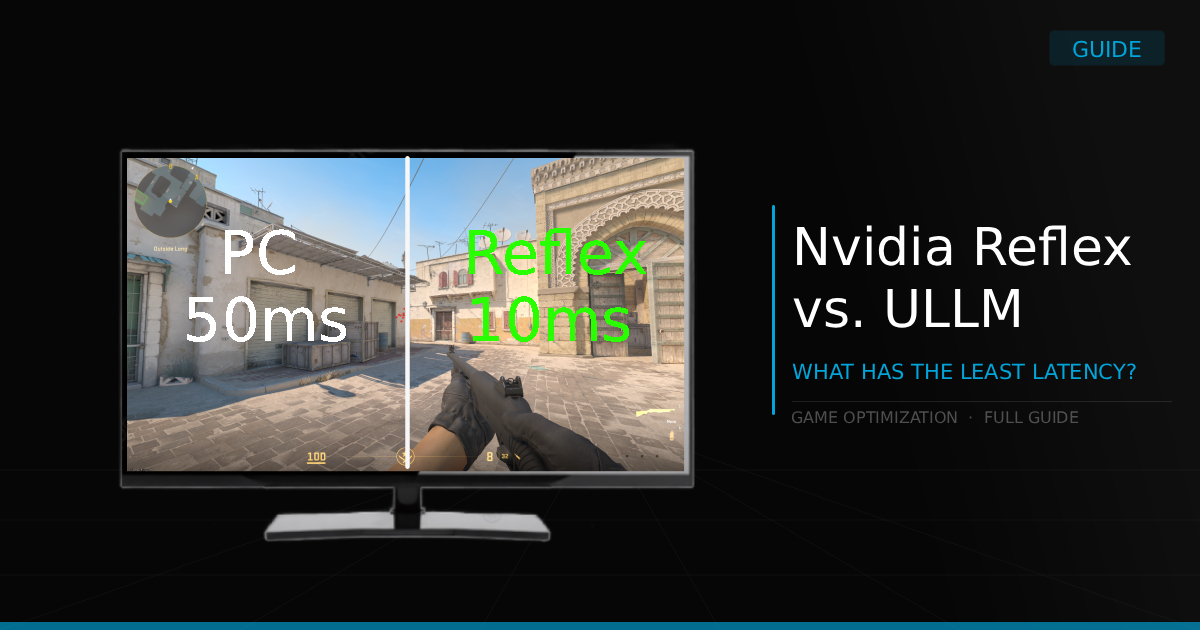
Both NVIDIA Reflex and Ultra Low Latency Mode share the same ultimate goal: reducing overall system latency and input lag. While they both use similar strategies to achieve this, their methods of implementation differ significantly.
If you're also looking into mouse latency, check out our Razer Viper V4 Pro review, where we explain Razer Frame Sync and how it works.
How does NVIDIA Reflex Work?
Unlike driver-level settings, NVIDIA Reflex must be integrated directly into a game by the developers. Because of this, you won't find a "magic" driver-level version that works for every title; it is primarily found in competitive shooters, though it is appearing in more modern titles every day. In your in-game settings, you will typically see options labeled Off, On, and On + Boost.

When you enable NVIDIA Reflex, it helps your CPU and GPU work in sync, effectively reducing the traditional render queue. Instead of the CPU getting ahead and queuing up work for the GPU, Reflex controls when the game starts preparing the next frame. This allows the game to sample your mouse and keyboard inputs later and submit work just in time for the GPU to process it.
By reducing the backlog of queued frames, Reflex can lower overall system latency and make your inputs feel more responsive. How much it helps depends on the game, your specific PC hardware, and whether your GPU is the main bottleneck.
How does NVIDIA Ultra Low Latency Mode Work?
NVIDIA Ultra Low Latency Mode (ULLM) is actually quite similar to NVIDIA Reflex, but it operates purely at the driver level. It also works to eliminate the frame queue, delivering frames to the GPU "just-in-time," as many others have described it.
The biggest difference comes down to performance and how much deeper the in-game coded Reflex can actually go. Because ULLM works at the driver level, it doesn't have the same direct integration with the game engine as Reflex. It still controls how frames are queued, but Reflex gives the game more control over when it samples your inputs and prepares the next frame. For step-by-step instructions on where to configure these options alongside DLSS and G-SYNC, check out our guide on the best NVIDIA App & Control Panel settings.
When to Use NVIDIA Reflex (In-Game Settings)
As a rule of thumb, we say you should almost always enable NVIDIA Reflex in-game, provided it doesn't cause unexpected stutters or lower your average frame rates in demanding AAA titles. However, it is important to understand the difference between On and On + Boost, as each setting handles system performance slightly differently.
NVIDIA Reflex On vs. On + Boost: Which Do You Use?
Reflex Low Latency "On": This setting helps your CPU and GPU work in sync, reducing the render queue while keeping your GPU's power-saving features active. Reflex On is a good starting point whenever the game supports it. It can be especially helpful when you're GPU-bottlenecked, which often happens with higher graphics settings.
Reflex Low Latency On + Boost: This option uses the same latency-reducing synchronization as the standard On mode, but also keeps your GPU clocks higher when they might otherwise drop. It can lower latency a little more, particularly when you're CPU-bottlenecked, but the benefit depends on your setup. If you're trying to squeeze out every last bit of responsiveness, give it a try and compare it with On. Just keep in mind that it can use more power.
Should You Enable Ultra Low Latency Mode (Control Panel)
Generally, we don't really see the point in turning it on most of the time. The most important games that need lower latency already take advantage of NVIDIA Reflex these days, which, more often than not, means competitive games. You'll also see it in AAA titles that have NVIDIA Frame Generation, where NVIDIA Reflex is turned on automatically.
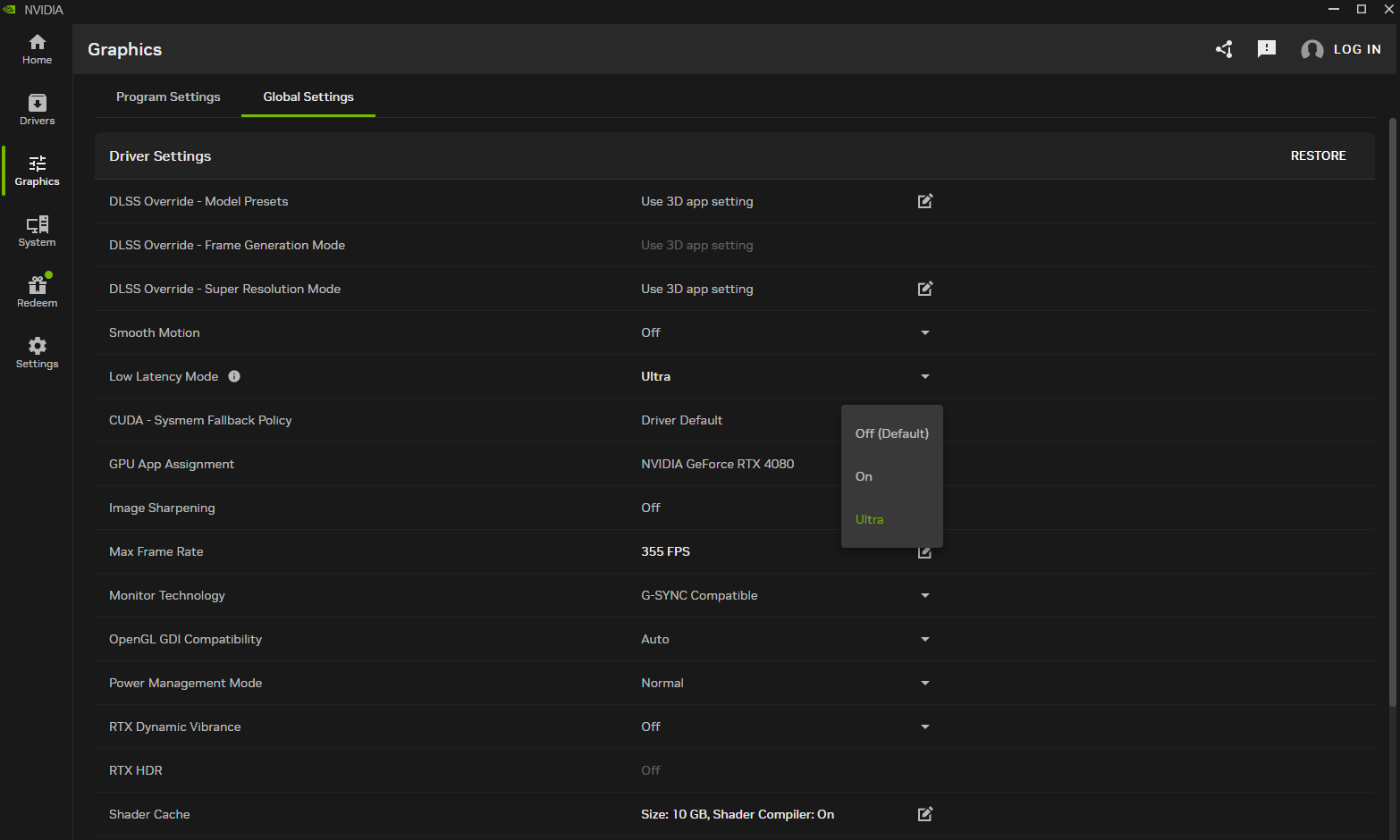
When do you turn on Ultra Low Latency Mode?
We recommend trying this feature in specific games rather than turning it on globally straight away. That way, you can check whether it improves responsiveness on your hardware and watch for any stutters or changes in frame pacing.
However, the plus side is that in supported games without Reflex, including older competitive titles, you can still take advantage of lower latency. ULLM also supports DirectX 12, so it isn't limited to older games. Additionally, if you use apps like Lossless Scaling on Steam, you can use Ultra Low Latency Mode in combination with frame generation on any game. Overall though, you're likely not going to play a story game and worry about latency at 60 to 120 FPS, you'll just be too busy enjoying the graphics and story the world offers.
Can You Use NVIDIA Reflex and Ultra Low Latency Mode At The Same Time?
You can turn both on, but their effects don't stack. When you enable NVIDIA Reflex in-game, it takes priority over Ultra Low Latency Mode.
However, I suppose that means you can leave Ultra Low Latency Mode on globally if you absolutely wanted to. Whenever Reflex is available, you can turn it on and let it take over. We'd still start with per-game settings so you can check how each game behaves.